What is A45?
A45 is a platform that automates the mandatory A4 and A5 climate calculations required by BR18. Instead of fragile spreadsheets and manual data collection, A45 brings your entire construction project’s climate documentation into one place — with AI-assisted data extraction, real-time monitoring, and automatic report generation.
A45 helps you:
- Scan invoices and delivery notes, from which the AI automatically extracts data
- Calculate A4 (transport) and A5 (construction site) emissions correctly per BR18
- Collaborate with all parties in the project — owners, consultants, contractors, subcontractors, and suppliers
- Generate the final BR18 report ready for submission via "Export PDF"
Getting started
You have been given access to A45 and received a link to create your account at a45lca.dk.
- 1.Follow the link and fill in your details
- 2.Confirm your email
- 3.When you log in, you land on the Projects page — your overview of all projects
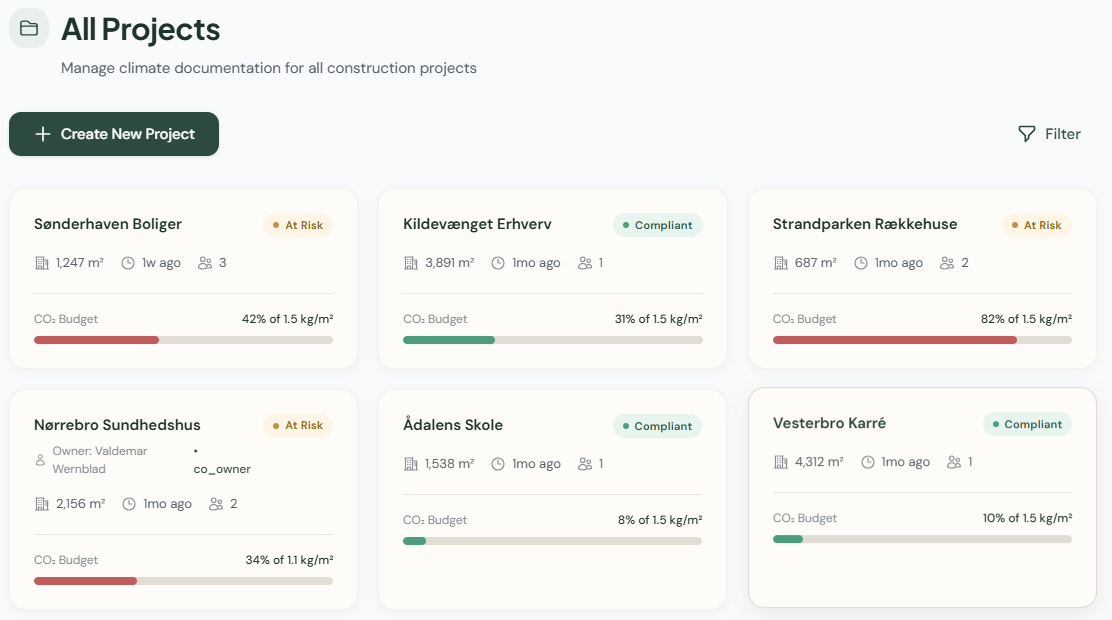
If you have been invited to a project by a colleague, you will receive an email with a direct link. Follow the link to create your account and gain access to the project right away. See Guide for invited users for a step-by-step walkthrough.
Create your first project
Click "Create project" from the Projects page. In the form, provide:
- 1.Project name — e.g. "Residential Build, Harbour Street 12"
- 2.Heated floor area — the heated gross floor area in m²
- 3.Limit value — the BR18 limit for the building (or a custom value)
- 4.Start date and End date — used to project the final emissions over the construction period
- 5.Location — used by the AI to automatically calculate transport distances
Click "Add project" to create the project.
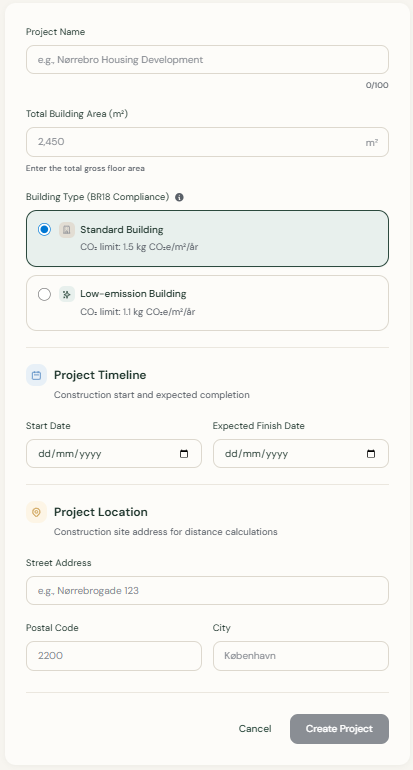
Important about Start date and End date: These dates directly affect the Projected value, which is the most important compliance metric. A45 uses them to forecast what total emissions will be at project completion based on emissions recorded so far. Set them as accurately as possible from the start.
Navigating A45
Global navigation
When you log in, you have access to three main pages:
- Projects page — an overview of all your projects. From here you can create new projects or open existing ones
- Dashboard — a combined compliance overview across all your projects, highlighting those approaching or exceeding the limit value
- Settings — manage your notification preferences
Inside a project
When you open a project, you have access to the following pages:
| Page | Description |
|---|---|
| Overview | Shows current status, limit value, projected value, total kg CO₂ (split by A4/A5), and latest emissions |
| Emissions | Detailed list of all emissions — method, who added it, when, climate impact. You can also delete emissions here |
| Drafts | Scanned invoices awaiting manual review |
| Reports | Documentation page where you can export the final report via "Export PDF" |
| Team | Invite and manage collaborators |
| Project settings | Edit the project’s details |
Configure fixed surcharges
When the project is created, fixed surcharges are configured automatically. They ensure that standard items are always included in your calculation:
| Surcharge | Type | Description |
|---|---|---|
| Terminal processes | Automatic | Storage and reloading of materials. Added automatically (+0.02 kg CO₂e/m²/year) when A4 transport is recorded |
| Packaging plus | Automatic | Covers packaging and waste. Added automatically (+0.02 kg CO₂e/m²/year) when standard values are used for A4 |
| Soil transport | Toggleable | Removal of surplus and contaminated soil. Default: 0.06 kg CO₂e/m²/year (BR18 Table 10.2) |
| Waste transport | Toggleable | Removal of construction waste to receiving facilities. Default: 0.06 kg CO₂e/m²/year (BR18 Table 10.2) |
| Equipment transport | Toggleable | Transport of heavy equipment to/from the construction site. Default per BR18 |
You can find these under the project’s Overview and Emissions pages. Actively assess whether the toggleable surcharges are relevant for your project, and enable or disable them accordingly.
Invite your team
You can invite all parties directly from the platform:
- 1.Go to Team in the project navigation
- 2.Enter an email address and select a role from the dropdown:
- Co-owner — full access to the project (typically consultants, engineers, or owners)
- Project member — can add and edit data in the project (typically contractors)
- Contributor — access to own data only (typically subcontractors)
- Supplier — delivery-related emissions only (typically material suppliers)
There are no extra user licences for the people you invite — subcontractors and suppliers create a free account.
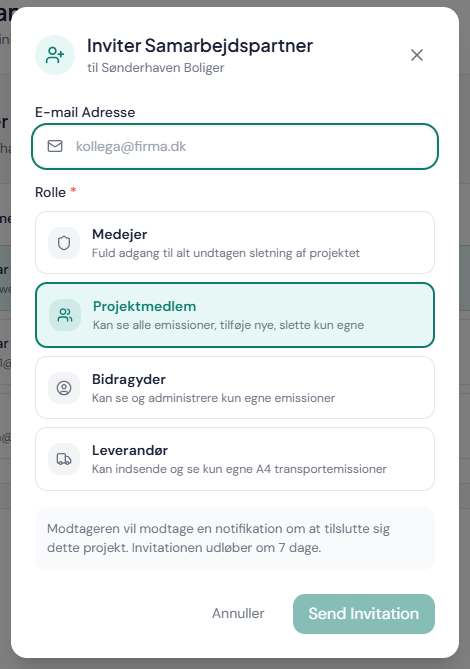
The sooner you get all parties into A45, the better. It is far easier to collect data continuously than to chase it after the fact. See Working together in A45: Team and role setup for a complete walkthrough of roles, best practices, and administration.
Add emissions
This is where the actual documentation begins. You have two ways to record emissions:
Method 1: Manual entry
- 1.Click "Add" to create an emission manually
- 2.Select category: A4 or A5
- 3.Select subcategory and calculation method
- 4.Fill in the fields and click "Save"
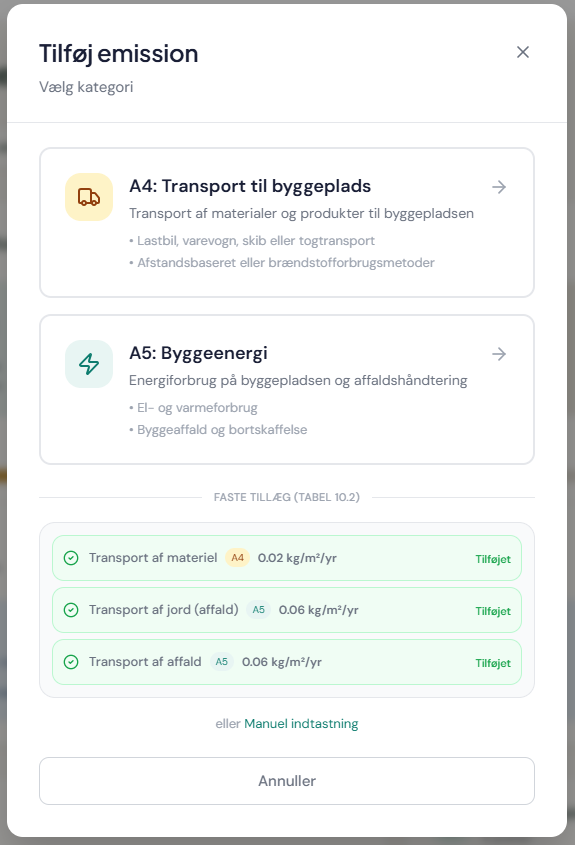
A4 — Transport
Subcategories: Transport of materials / Transport of equipment
Both subcategories share the same calculation methods and fields. BR18 allows four calculation methods for A4 transport — you can freely mix methods within the same project. Choose the method that fits your available data:
| Field | Description |
|---|---|
| Transport name | Short description of the transport, e.g. "Concrete element delivery from ReadyMix" |
| Transport distance | Distance in kilometres from sender to the construction site (one way) |
| Vehicle type | Select vehicle type: Small truck (12-14t), Medium truck (20-26t), Large truck w. trailer (34-40t), or Custom — factor from BR18 Annex 2 Table 5.4 |
| Payload weight | Total weight of the transported material in kg |
| Field | Description |
|---|---|
| Transport name | Short description of the transport |
| Fuel type | Select fuel: Diesel, Petrol, LPG, CNG, etc. — emission factor from BR18 Annex 2 Table 8.2 |
| Fuel consumption | Actual litres (or kg) used for the transport. Including return trip. For part loads: enter only your share |
| Field | Description |
|---|---|
| Transport name | Short description of the material |
| Material type | Select product group from BR18 Annex 2 Table 10.1 (e.g. ready-mix concrete, plasterboard, structural timber — 27 categories) |
| Material weight | Total weight of the delivered material in kg. You do not need to know the transport distance — it is included in the standard value |
| Field | Description |
|---|---|
| Transport name | Short description of the product |
| A4 GWP value from EPD | A4 climate impact (GWP) as stated in the Environmental Product Declaration, per declared unit |
| Declared unit | The unit the EPD is expressed in: kg, m², m³, or pcs |
| Transport distance in EPD | The transport distance the EPD is calculated from (km) |
| Actual transport distance | The real distance from producer to your construction site (km) — used to scale the EPD value |
| Quantity | Number of declared units delivered |
A5 — Construction site
A5 covers everything that happens on the construction site itself: energy consumption, machinery over 1 tonne, construction waste, and waste removal. Energy and equipment must always be reported with actual, measured data.
On-site consumption
| Field | Description |
|---|---|
| Equipment name | E.g. "Excavator CAT 320" or "Telehandler" — only machinery over 1 tonne must be included |
| Fuel type | Select fuel: Diesel (3.44 kg CO₂e/L), Petrol, LPG, CNG, etc. — factor from BR18 Annex 2 Table 8.2 |
| Quantity | Litres of fuel (or kg) consumed in the period |
| Start date / End date | The period the equipment was in use on the construction site |
| Field | Description |
|---|---|
| Facility name | E.g. "Site hut lighting" or "Drying heat" |
| Energy type | Select energy source: Electricity (DK mix), District heating, or Piped gas — factor from BR18 Annex 2 Table 8.1 (year-dependent) |
| Quantity | Actual consumption in kWh metered during the construction period |
| Start date / End date | The period the facility was active |
Construction site waste
| Field | Description |
|---|---|
| Waste fraction | Select from BR18’s 15 fractions: Concrete (0.17), Metal (1.97), Gypsum (0.33), Wood (0.14), Plastic (5.17), etc. — factor from Annex 2 Table 11 (kg CO₂e/kg) |
| Weight | Total weight of the waste fraction in kg (typically from a weighbridge receipt) |
| Field | Description |
|---|---|
| Product name | Name of the product that has gone to waste |
| Weight | Weight of the disposed material in kg |
| Climate impact (A1-C4) | The product’s total climate impact per kg from the EPD (kg CO₂e) |
Waste transport
| Field | Description |
|---|---|
| Transport name | Short description, e.g. "Container to recycling station" |
| Transport distance | Distance to receiving facility in km |
| Waste weight | Total weight of the transported waste in kg |
| Vehicle type | Select vehicle type — same as for A4 distance-based |
| Field | Description |
|---|---|
| Transport name | Short description |
| Fuel type | Select fuel — same as for A4 measured fuel |
| Fuel consumption | Actual litres used for the waste transport |
- Construction waste transport — 0.06 kg CO₂e/m²/year
- Soil transport — 0.06 kg CO₂e/m²/year
Method 2: Scan invoice (AI-assisted)
- 1.Scan invoice — click "Scan invoice" and upload an invoice
- 2.AI processing — A45’s AI scans the document
- 3.Continue to drafts — click "Continue to drafts"
- 4.Review — click "Review" on the individual draft
- 5.Save — click "Save" to record the emission
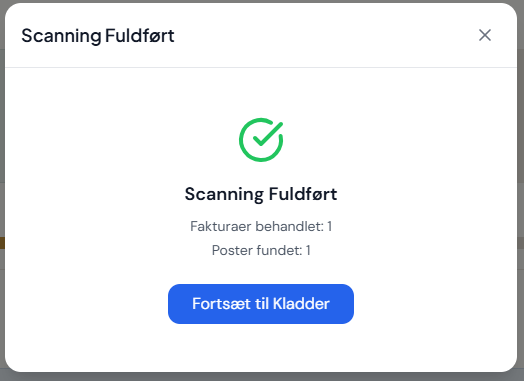
The AI can make mistakes. Always review the extracted data.
Track your CO₂ usage
At project level — Overview
Overview is your primary status view and shows:
- Current status — where the project stands right now
- Limit value — the maximum permitted CO₂ emission
- Projected value — forecast of expected total emissions
- Total kg CO₂ — split by A4 and A5
- Latest emissions — the most recently added emissions

The Projected value is your most important compliance metric. If it is approaching the limit value, you need to take action.
Across projects — Dashboard
Dashboard gives you a compliance overview across all your projects.
Can you see that a project is approaching the limit? Consider switching from standard values to EPDs or actual measured fuel consumption.
Export report
- 1.Go to Reports in the project navigation
- 2.Confirm that all emissions have been reviewed and that Drafts is empty
- 3.Click "Export PDF"
The report contains:
- Combined A4 and A5 emission breakdown
- Method-specific tables
- Compliance status
- Contributor overview
- Full traceability — complete audit log
Typical documents you can scan
| Document type | Used for | Example |
|---|---|---|
| Supplier invoice | Material transport (A4) | Invoice for concrete delivery |
| Delivery note | Transport (A4) | Delivery note with weight and distance |
| Transport document / waybill | Transport (A4) | Waybill with fuel consumption |
| Energy invoice | On-site consumption (A5) | Electricity invoice for tower crane |
| Waste documentation | Construction site waste (A5) | Receipt for container collection |
Frequently asked questions
Between our guides and the platform itself, you get all the help you need. You do not need to know BR18 in advance — but if you are curious, the relevant sections are BR18 §297-298 and Annex 2.
Yes — invite them as a Contributor, and they will only have access to add their own data.
"Scan invoice" uses AI to automatically extract data from a document. "Add" is for manual entry, where you fill in the fields yourself.
When you scan an invoice, the result lands on the Drafts page as a draft. There you review the AI’s extraction and click "Save" to record the emission.
You can correct the extracted values manually on the Drafts page before you click "Save". If an emission has already been saved, it can be deleted and re-created with the correct data.
Yes. As an Owner or Co-owner you can delete an emission from the Emissions page and then create a new one with the correct data.
You can manually add the missing emissions via the "Add" button based on other documentation. All manual entries are logged with full traceability.
Yes, you can experiment by switching methods and see the result before you click "Save".
The report is most meaningful at project completion, but you can go to Reports at any time and click "Export PDF" to generate a preliminary overview.
Current status shows the actual accumulated emissions to date. Projected value is a forecast of what total emissions are expected to be at the End date, based on the pattern so far. The Projected value is the most important figure to watch for compliance.
Terminal processes are added automatically when A4 transport is calculated, and Packaging plus is added when you use Standard values for A4. These cannot be turned off. Soil transport, Waste transport, and Equipment transport can be toggled on or off as needed.
Your project data and calculations are stored for 30 days, giving you time to export.