You have received an invitation
A contractor, developer, or consultant has invited you to contribute climate documentation in A45. Whether you are a subcontractor, material supplier, energy provider, or waste handler — the process is the same: you enter your documentation directly in the platform, and it takes care of the rest.
Registering an emission typically takes just a few minutes.
What is A45?
A45 is a platform for automated climate calculations in construction. The building industry must document the climate impact of material transport and construction-site activities (known as A4 and A5 emissions) as part of BR18 regulatory requirements. A4 covers the climate impact of transporting materials and equipment to the construction site. A5 covers activities on the construction site itself — energy consumption, machinery, and construction waste handling.
As an invited user, you help the project by entering data directly in the platform — instead of sending it back and forth via email.
Your role as an invited user (Contributor or Supplier) means you only need to:
- Register emissions for your own deliveries and activities
You do not have access to other parties' data — only your own.
Getting started: Accept the invitation
Step 1: Open the email
You will receive an email containing: The project name, Your role, A link to get started
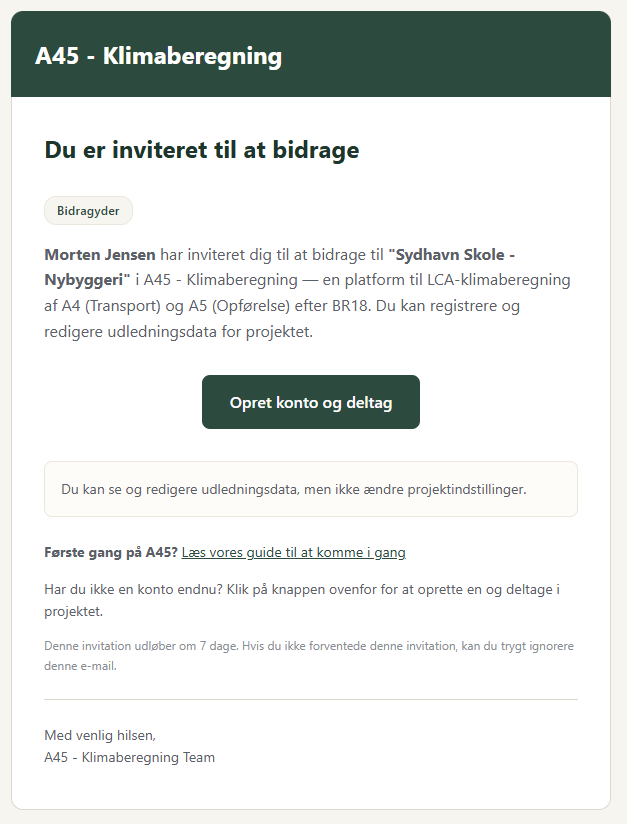
Step 2: Sign in or create an account
Click the link in the email. You have two options:
- Already have an A45 account? Sign in with your existing email and password
- New user? Create a free account with your name, email, and a password
Your account is free — you do not need a subscription to contribute.
Step 3: View your project
Once signed in, you land on the Projects page, where you can see the projects you have been invited to. Click a project to get started.
How to register emissions
Your main task is to document the emissions linked to your work. There are two methods:
Method 1: Manual entry
- 1.Click "Add"
- 2.Select A4 or A5
- 3.Choose a subcategory and method
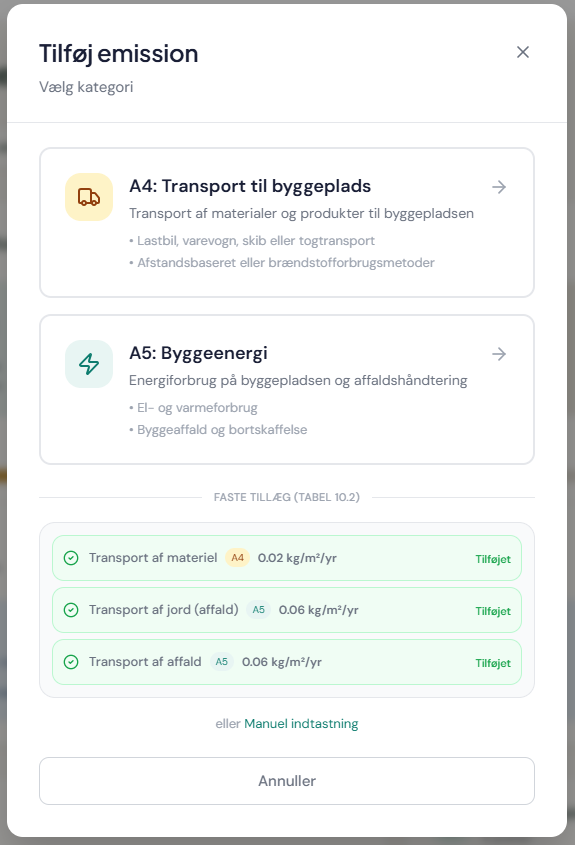
A4 — Transport
Subcategories: Transport of materials / Transport of equipment
| Field | Value |
|---|---|
| Name/Description | Short description of the transport |
| Distance | Kilometres from sender to the construction site (one way) |
| Vehicle type | Small (12-14t) / Medium (20-26t) / Large w. trailer (34-40t) / Custom |
| Payload weight | Total weight of the transported material in kg |
| Field | Value |
|---|---|
| Name/Description | Short description of the transport |
| Fuel type | Diesel / Petrol / LPG / CNG / HFO / LFO — factor from BR18 Annex 2 Table 8.2 |
| Fuel consumption | Actual litres used for the transport. Including return trip |
| Field | Value |
|---|---|
| Name/Description | Short description of the material |
| Material type | Select product group from BR18 Annex 2 Table 10.1 (27 categories) |
| Material weight | Total weight in kg — transport distance is included in the standard value |
| Field | Value |
|---|---|
| Name/Description | Short description of the product |
| A4 GWP value from EPD | A4 climate impact (GWP) per declared unit from the EPD |
| Declared unit | The unit the EPD is expressed in: kg, m², m³, or pcs |
| Transport distance in EPD | Transport distance the EPD is calculated from (km) |
| Actual transport distance | Real distance from manufacturer to construction site (km) — used for scaling |
| Quantity | Number of declared units delivered |
A5 — Construction site
On-site consumption
| Field | Value |
|---|---|
| Equipment name | E.g. "Excavator CAT 320" — only machinery over 1 tonne |
| Fuel type | Diesel, Petrol, LPG, CNG, etc. — factor from BR18 Annex 2 Table 8.2 |
| Quantity | Litres of fuel consumed in the period |
| Start/End date | The period the equipment was in use |
| Field | Value |
|---|---|
| Facility name | E.g. "Site cabin lighting" or "Drying heater" |
| Energy type | Electricity (DK mix), District heating, or Mains gas — factor from BR18 Annex 2 Table 8.1 |
| Quantity | Actual consumption in kWh metered during the construction period |
| Start/End date | The period the facility was active |
Construction waste
| Field | Value |
|---|---|
| Waste fraction | Select from BR18 fractions: Concrete, Metal, Gypsum, Wood, Plastic, etc. — factor from Annex 2 Table 11 |
| Weight | Total weight of the waste fraction in kg (typically from a weighbridge ticket) |
| Field | Value |
|---|---|
| Product name | Name of the product that has gone to waste |
| Weight | Weight of the disposed material in kg |
| Climate impact (A1-C4) | Total climate impact per kg from the EPD (kg CO₂e) |
Waste transport
| Field | Value |
|---|---|
| Transport name | Short description, e.g. "Container to recycling facility" |
| Transport distance | Distance to the receiving facility in km |
| Waste weight | Total weight of the transported waste in kg |
| Vehicle type | Small (12-14t) / Medium (20-26t) / Large w. trailer (34-40t) / Custom |
| Field | Value |
|---|---|
| Transport name | Short description |
| Fuel type | Select fuel — same as for A4 measured fuel |
| Fuel consumption | Actual litres used for the waste transport |
- Transport of construction waste: 0.06 kg CO₂e/m²/year
- Transport of soil: 0.06 kg CO₂e/m²/year
- 1.Click "Save"
Method 2: Scan invoice (AI-assisted)
- 1.Click "Scan invoice"
- 2.Upload an invoice or delivery document (PDF or image)
- 3.The AI analyses the document and fills in the fields automatically
- 4.Review the suggested data — correct any errors
- 5.Confirm and save the emission
- 6.The emission is created with the approved values
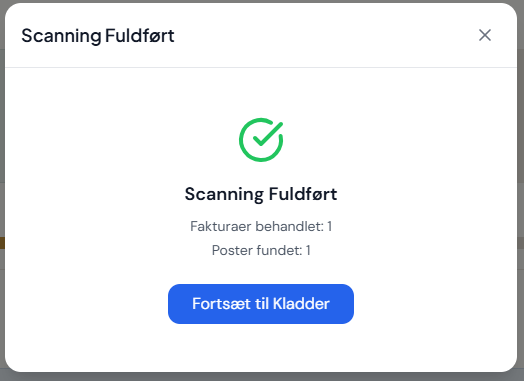
The AI can make mistakes. Always review the suggested data before confirming. You are responsible for ensuring the registered data is correct.
What should you typically document?
| Party type | What | Type | Example |
|---|---|---|---|
| Subcontractor | Transport of materials to the construction site | A4 | Delivery of concrete elements from factory to site |
| Subcontractor | Transport of equipment to the construction site | A4 | Crane transported to the construction site |
| Subcontractor | Fuel consumption for equipment over 1 tonne | A5 | Diesel consumption for excavator |
| Supplier | Transport of materials | A4 | Delivery of insulation from warehouse to site |
| Supplier | EPD data for products | A4 | A4 GWP value from product EPD |
| Energy provider | Energy consumption for temporary facilities | A5 | Electricity consumption for site office |
| Energy provider | Fuel for heating | A5 | Gas consumption for drying |
| Waste handler | Transport of construction waste | A5 | Hauling containers to landfill |
| Waste handler | Waste fractions and weight | A5 | Mixed construction waste, 2,400 kg |
Do you have an EPD?
If you have an EPD (Environmental Product Declaration) for your products, you can use it to register more accurate A4 emissions. EPD data provides the most precise climate documentation because it is based on product-specific life cycle assessments (LCA) rather than generic standard values.
Frequently asked questions
Yes. You can create a free account and contribute to projects at no cost. The project owner holds the subscription.
No. You can only view and edit your own emissions. Other parties' data is not visible to you.
You can delete an incorrect emission and create a new one. Your changes are saved automatically.
No. The platform and guides walk you through the process. You just need to enter the data you already have — e.g. from invoices, delivery notes, or EPDs.
You can always use manual entry. If you know the distance, fuel consumption, or weight, you can enter it directly.
"Scan invoice" uses AI to automatically extract data from an uploaded document. "Add" lets you fill in the fields manually. Both methods produce the same result.
Scanned invoices are saved on the Drafts page, where you can review and approve the suggested data before they become emissions.
Yes. You can contribute to multiple projects with the same account. Each project appears on your Projects page.
A4 covers emissions from transporting materials and equipment to the construction site. A5 covers emissions from activities on the construction site itself — e.g. energy consumption, use of machinery, and construction waste handling.
When you scan an invoice, the AI shows a confidence score for each field. A high score means the AI is confident in the value. A low score means you should double-check the value manually.
Your data remains accessible in the platform even after the project is completed. You can always sign in and view your previous contributions.